Solve This OA For Me
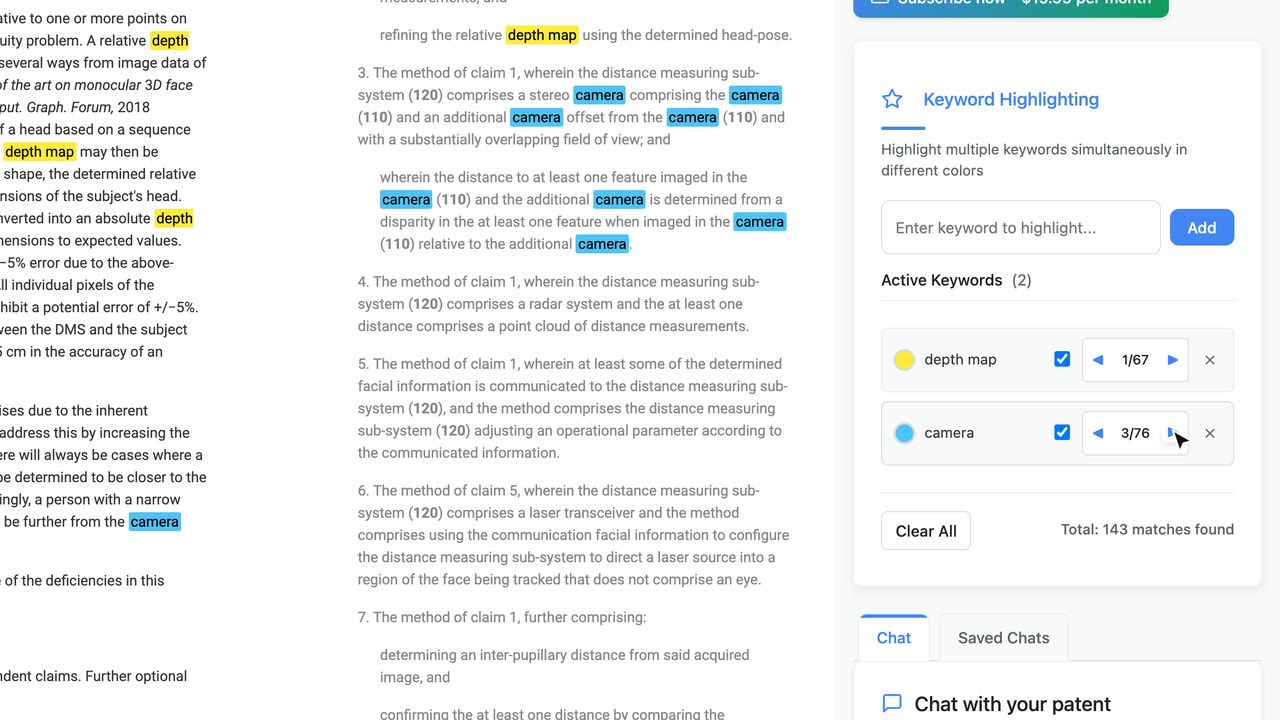
Solve This OA For Me is a set of four free tools for patent prosecution. The Patent Reader shows a published patent with its reference numerals linked to the drawings and its claim terms marked. The OA Agent reads an Office Action and the cited prior art and recommends whether to argue or amend each rejection, using your own Anthropic API key. The Antecedent Basis checker flags claim terms that lack antecedent basis, and the Claim Translator turns Japanese claims into English claims in US form.
Free, with no sign-up. The OA Agent needs your own Anthropic API key.
Read a patent with numerals linked to the drawings
The Patent Reader opens a patent or published application from its publication number, such as US11423567B2. The text is fetched from the document’s Google Patents page, and the reader then marks it up. Description paragraphs keep their paragraph numbers. Clicking a paragraph number opens a box where you can type another paragraph number to jump to, which is useful for following an examiner’s citations. Pressing ⌘K opens a box for loading a different document.
Every reference numeral in the abstract, description and claims is marked. Clicking one highlights all of its occurrences in the text. The Details tab lists each numeral with the element name the description gives it and the number of times it appears. In US11423567B2, numeral 110 is the camera and appears 37 times.
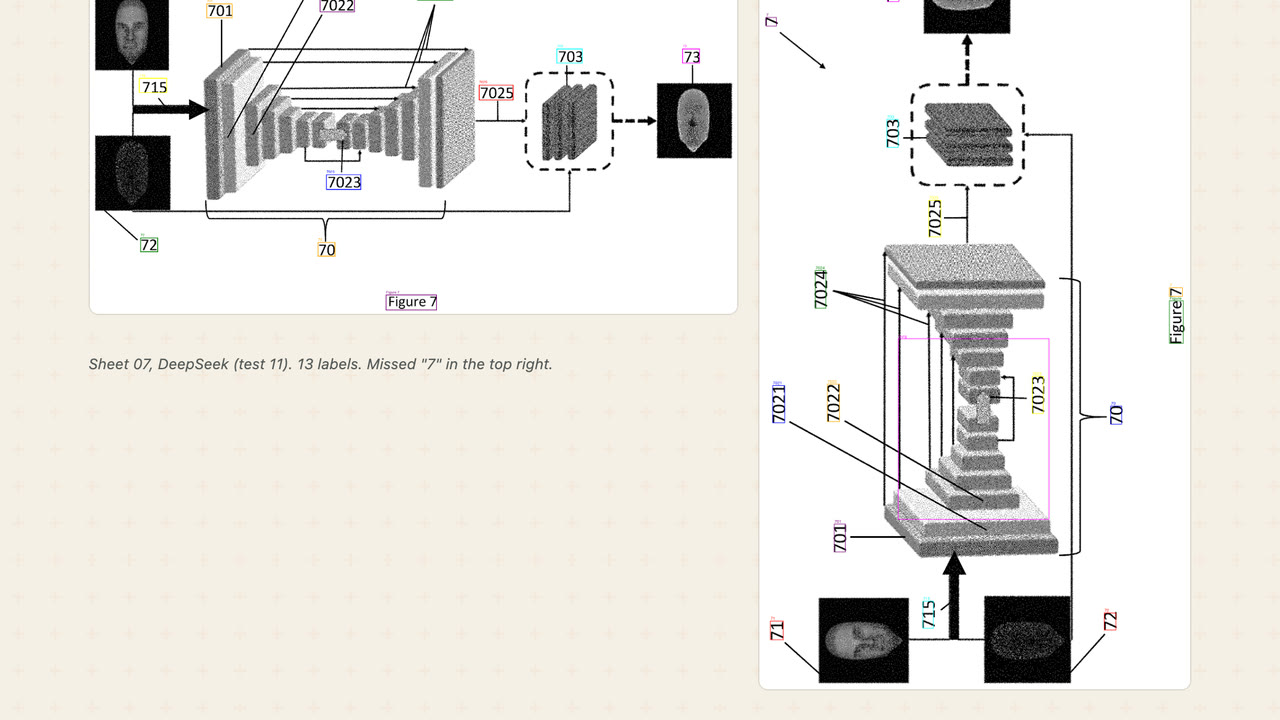
The Figures tab shows the drawing sheets. When you open a sheet, the reference numerals on it are boxed, and the numeral you selected in the text is highlighted on the drawing. A list under the drawing gives the elements on that sheet. You can zoom with the scroll wheel, rotate a sheet that was drawn sideways, and turn the boxes off. The boxes come from running Google Cloud Vision text recognition on the drawing sheets.
Claims, search and the file details
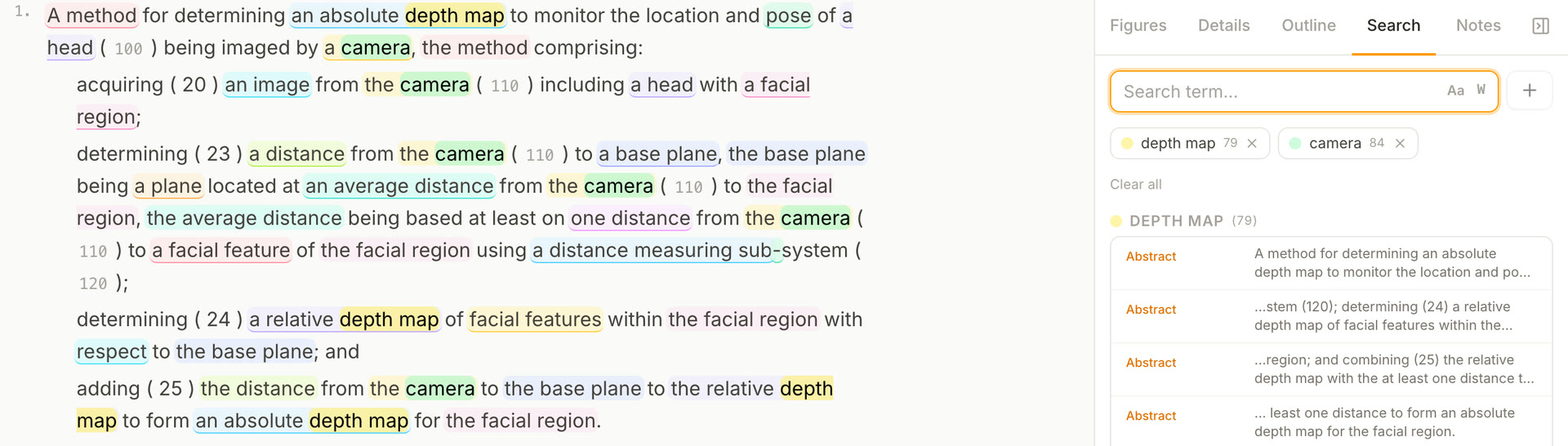
The claims are shown with each limitation on its own indented line. Each term that a claim introduces with “a” or “an” gets a colour, and later references to it with “the” or “said” get the same colour, including references in dependent claims. The Outline tab lists the sections of the description and the claim tree, with each independent claim and the claims that depend from it.
The Search tab takes several terms at once. Each term gets its own colour in the text and a count, and its matches are listed by section. Match case and whole-word matching are switches next to the search box.
The Details tab also has the CPC classifications, the claim counts, a link to the PDF, the patent citations with the examiner’s citations marked, the documents that cite this one, non-patent citations, the patent family with the status of each member, legal events and similar documents.
For older US patents that have no paragraph numbers, the reader downloads the printed patent and matches each paragraph to its column and line numbers. When you select text, it shows the column and line citation, and a Source tab shows the printed page. You can also jump to a column and line. Compare opens a second patent beside the first. In the Notes tab you can highlight passages and add notes to them.
Work through an Office Action with the OA Agent
The OA Agent is a chat with an AI agent built on Anthropic’s Claude Agent SDK. You start a session and attach the Office Action, the specification or published application, and the pending claims, as PDF, Word, image or text files, or paste text into the chat. Earlier responses can be added too. When the Office Action cites a reference by publication number, the agent fetches its text from Google Patents. If it only has an application number, it asks you for the document.
The agent first splits the Office Action into separate rejections and classifies each one as anticipation, obviousness, subject matter eligibility, a formal or clarity rejection, or other. All of the prior art rejections under 35 U.S.C. 102 and 103 go to one handler, and the rest, such as 35 U.S.C. 101, 112(b) or double patenting, go to a second handler. Both handlers run on Claude Opus. They search and read the uploaded documents and quote the claim language, the examiner’s reasoning and the cited passages. The chat shows each file the agent reads and each search it runs.
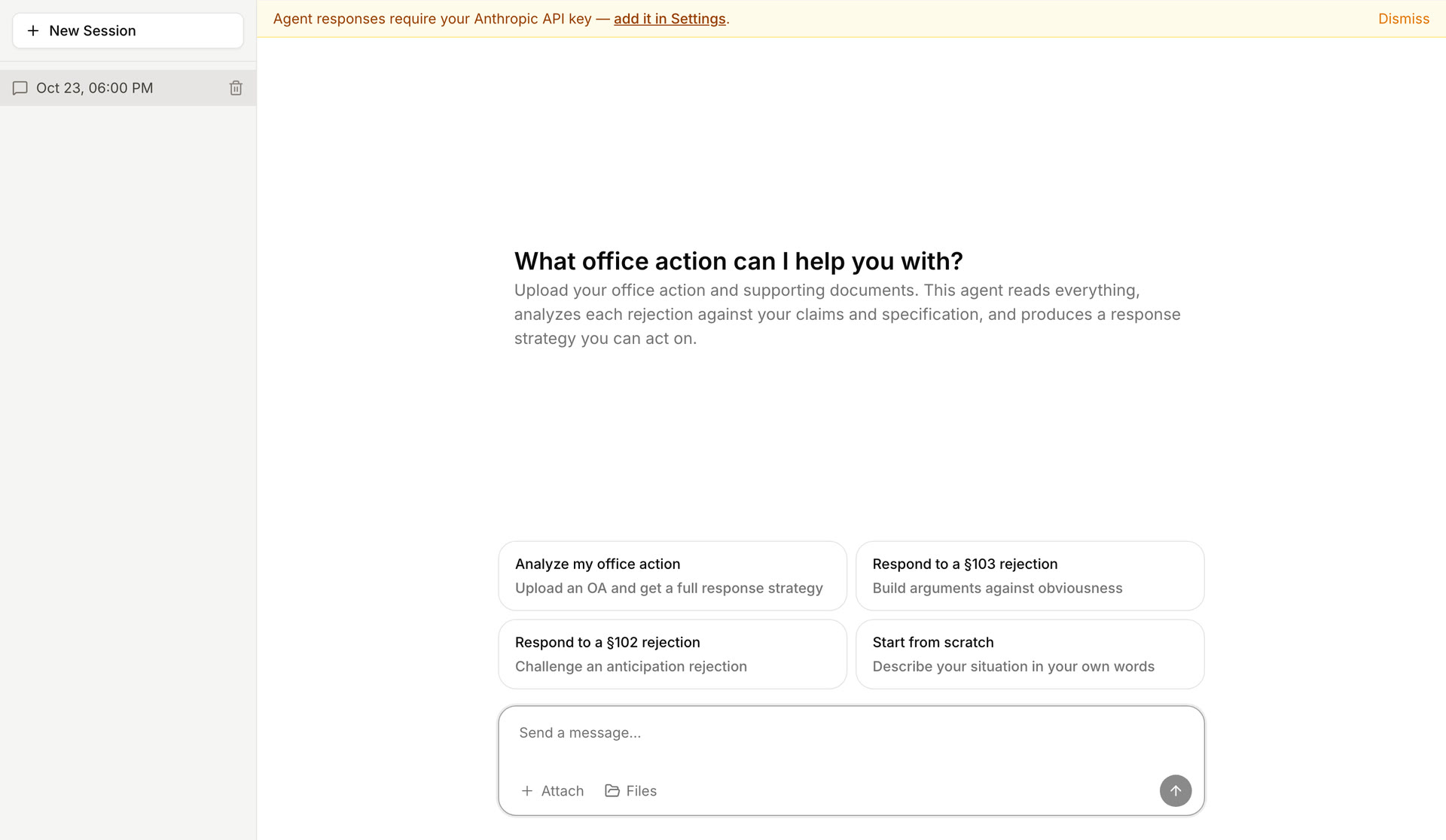
The result is two documents. The strategy document takes each rejection in turn. It sets out the examiner’s position with a table that maps each claim element to the examiner’s citation, then gives one recommendation, argue or amend. For an amendment, it explains why the current claims are hard to argue, shows the amended claim with deletions struck through and additions underlined, cites the specification support, and gives the argument for the amended claim. The amended claims document reproduces the whole claim set with status identifiers such as Currently amended, Original and Canceled. Both can be downloaded as Markdown or Word files, and you can keep asking questions in the same session.
The output is the model’s reading of your documents. The quotations are not checked against the documents automatically, so the cited passages should be checked before anything is filed. The site calls the agent a tool for working out the response, not for drafting it.
API key and where your documents go
The OA Agent needs an Anthropic API key, which you add on the Settings page, and Anthropic bills you for the model usage. The key is kept in your browser’s local storage. It is sent with each message to the site’s server, which passes it to the agent process for that request and does not save it.
Uploaded files, the conversation and the agent’s working files are saved on the server under your session, and the agent sends the documents it reads to Anthropic’s API under your key. The server has no permanent storage at the moment: its disk is cleared when it has been idle for two hours, which removes sessions, uploads and notes. You can also delete a session yourself. There is no sign-up. The site gives each browser an anonymous account in the background so that your sessions stay separate from other people’s.
Check amended claims for antecedent basis
The Antecedent Basis checker is an editor for a claim set. You paste the claims, and the checker reads the claim numbers and dependencies, including forms such as “any one of claims 1 to 3”. A couple of seconds after you stop typing, it marks each introduction and each reference in the text and lists the problems on the right, grouped by term.
It runs five separate checks:
- Antecedent basis: a term referred to with “the” or “said” that no earlier claim in the chain introduced.
- Pronouns: “it”, “its”, “they” and “their” in a claim.
- “Such” phrases: constructions such as “such signal”.
- Prepositional scope: a term that was only ever the object of a preposition, such as “a valve for a conduit”, and is later referred to as “the conduit”.
- Reintroduction: a dependent claim that introduces with “a” a term its parent claim already introduced.
Clicking a finding shows the reason and, where one is found, a suggested replacement taken from the terms already introduced, which you can apply with one click. The Expanded Claims view shows each claim with its dependency chain and its own count of problems.
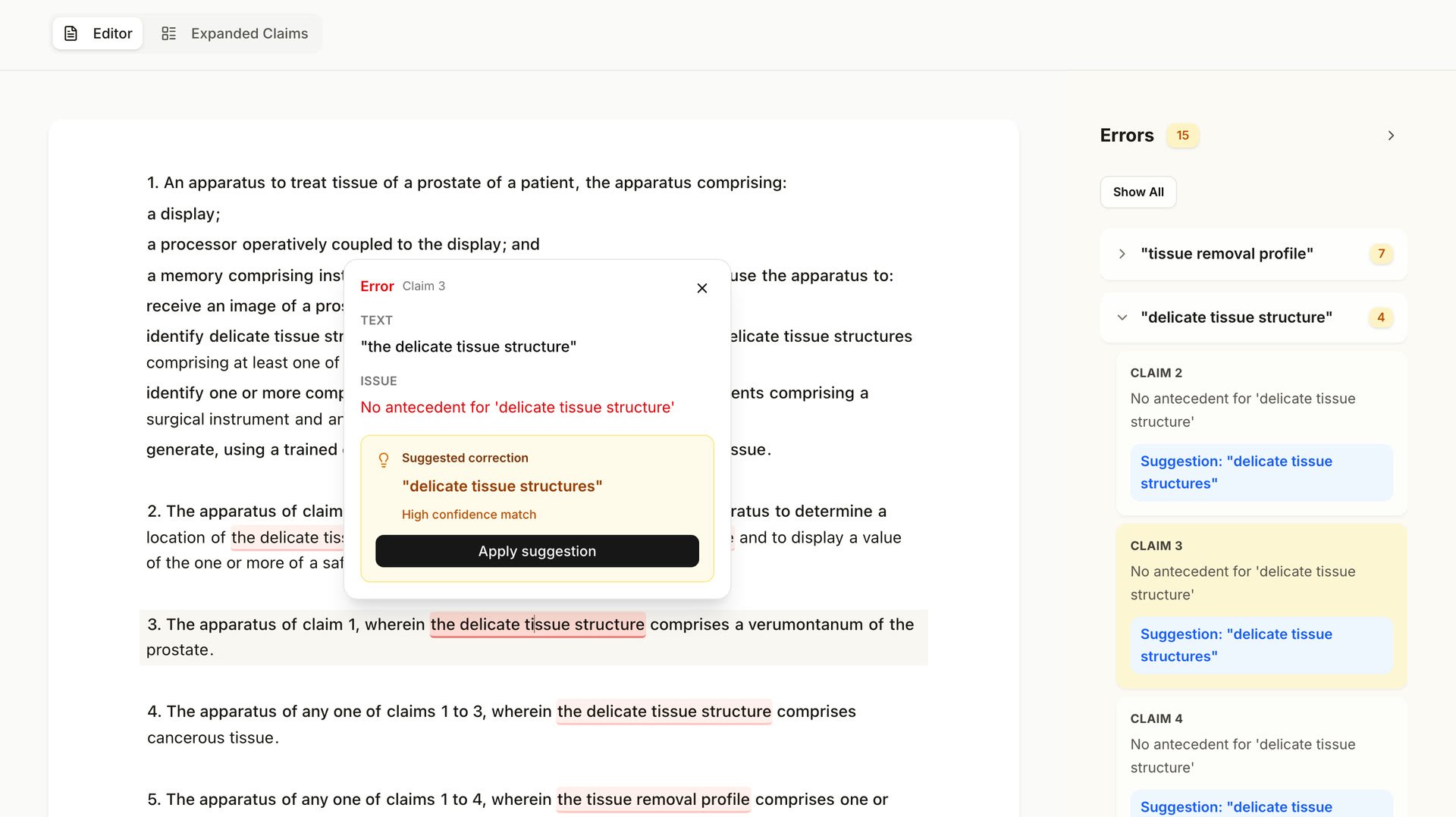
The checks are rules, not a language model. The claims are sent to the site’s server, which parses each claim with spaCy’s English transformer pipeline to find the noun phrases and their determiners, then applies the five rules down each dependency chain. The suggestions come from word-vector similarity to the terms already introduced. The same claims give the same findings each time, and the claims are not stored. The site describes the checker as a linter that will produce false positives, so each finding is a line to look at rather than a defect.
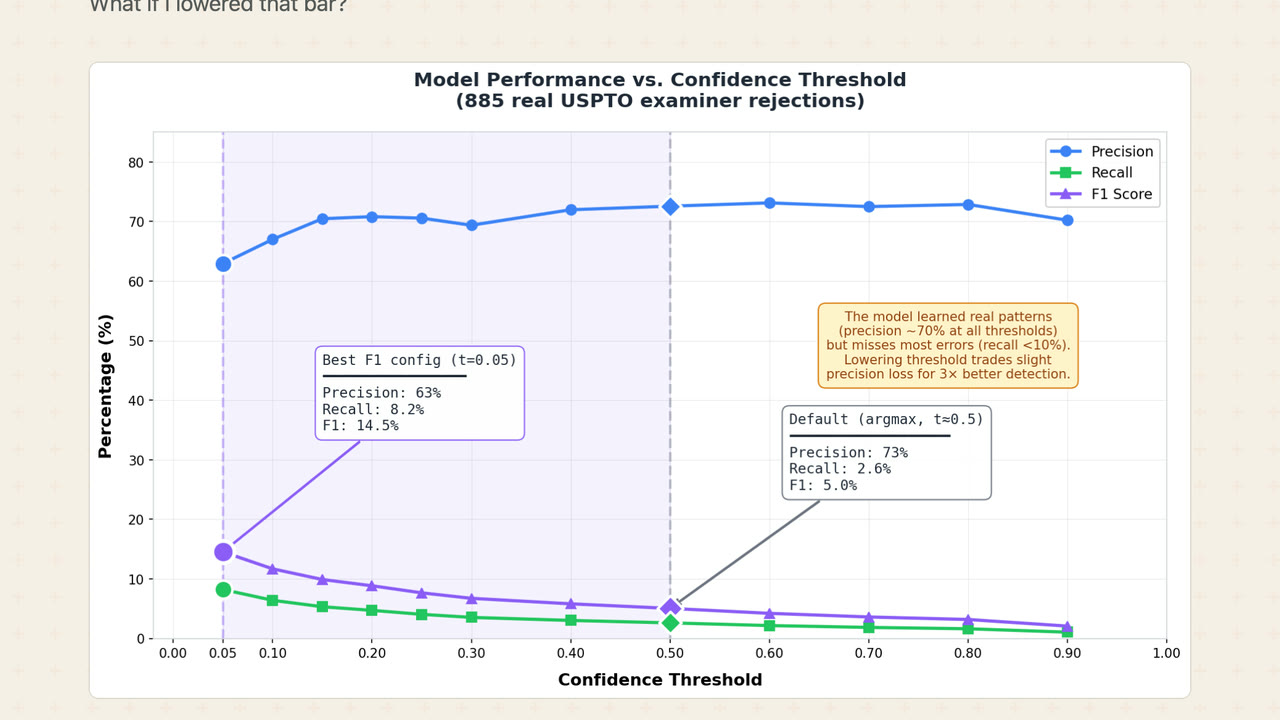
The checker does not use the DeBERTa model from the essay Failing to Train DeBERTa to Detect Patent Antecedent Basis Errors, which reached 90% F1 on synthetic errors and 8% recall on real examiner rejections.
Translate Japanese claims into US form
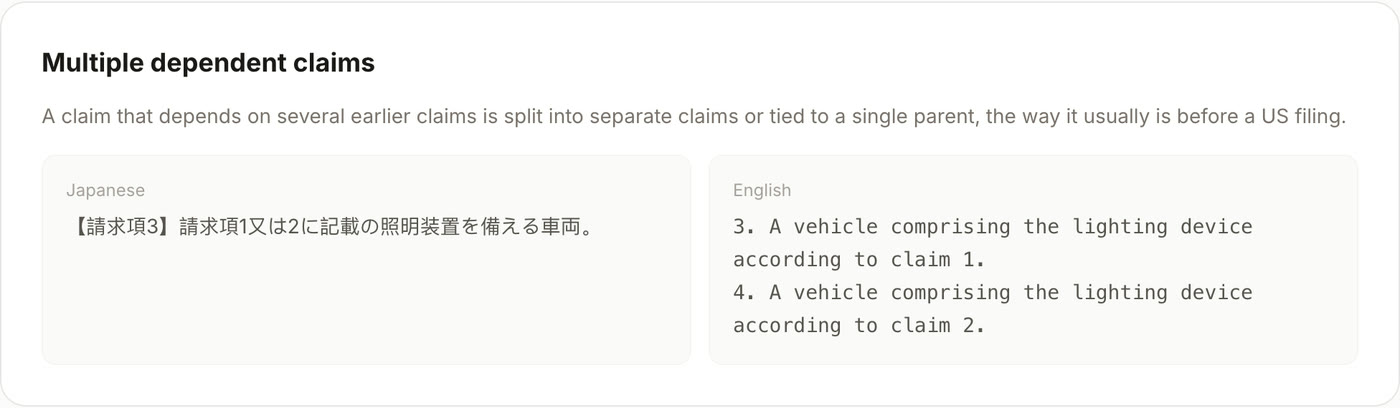
The Claim Translator takes up to 4,000 characters of Japanese claims, written as 【請求項1】, 【請求項2】 and so on, and returns English claims in US form. Multiple dependent claims are split into separate claims or tied to one parent, and drawing reference signs in parentheses are usually dropped. Six example claim sets from published Japanese applications can be loaded from a menu, and for each one the page can show the claims US counsel filed for the same invention.
The model is Qwen3-14B with a LoRA adapter trained on 978 patent families in which the same invention was filed first in Japan in 2018 and then in the US. Each training pair is the Japanese claim set as filed and the US claim set as filed. On 209 families held out from training, all of its outputs were in US claim form and none contained multiple dependent claims, against 86.6% with multiple dependent claims for the untuned model. It retained 93.7% of the numerical values, and its claim count matched what counsel filed in 56.5% of cases, because counsel often adds claims.
The model runs on a Hugging Face Space with shared GPUs, which allows each visitor a few translations a day. Your claims go from your browser to the Space, not to the site’s server, and the site asks you not to paste unpublished claims. The model and its evaluation are published on Hugging Face under Apache 2.0.
More patent tools
All patent tools →